How Apple Business Connect Puts Your Business on Every iPhone Near You

Claim your business location on Apple Maps by signing into Apple Business Connect with your Apple ID, verifying ownership through email or phone, and completing your business profile with accurate NAP (name, address, phone) information within 15 minutes. This free platform gives you direct control over how your business appears across Apple Maps, Siri, Wallet, and other Apple services used by over 1 billion iPhone users worldwide.
Update your business information in real-time without waiting for third-party aggregators or directory approvals, ensuring customers always see current hours, contact details, and special announcements. Unlike Google Business Profile, Apple Business Connect offers streamlined management with fewer verification hurdles and faster updates that sync across the Apple ecosystem instantly.
Optimize your place card by adding high-quality photos, selecting accurate business categories, and enabling features like Apple Pay integration and appointment scheduling links. These enhancements increase visibility in local searches performed through Siri voice queries and Apple Maps navigation, capturing customers actively looking for services in your area.
Monitor your listing’s performance through the built-in analytics dashboard, tracking how customers interact with your business information and which actions they take most frequently. This data reveals whether customers are calling, getting directions, or visiting your website, allowing you to refine your local SEO strategy and improve conversion rates without complex tracking tools.
This comprehensive guide walks you through each step of setting up, optimizing, and managing your Apple Business Connect presence to maximize local search visibility and customer engagement.
What Apple Business Connect Actually Does for Your Local Business
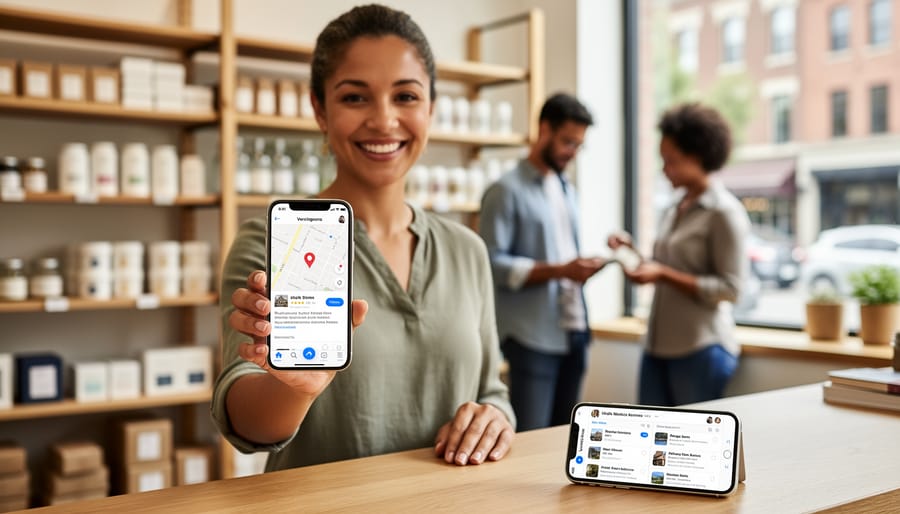
Apple Business Connect serves as your business’s central command center across Apple’s entire ecosystem, ensuring customers find accurate, up-to-date information about your company wherever they interact with Apple devices and services. When you claim and optimize your business profile through this platform, your information automatically populates across Apple Maps, Siri voice queries, Apple Wallet, Messages, and other Apple applications that over 2 billion active device users rely on daily.
The platform’s reach extends far beyond a simple map listing. When someone asks Siri for nearby restaurants, stores, or services, your business information appears in those results. When customers use Apple Maps for navigation, they see your hours, contact details, and photos. When they save your location card to Apple Wallet, they can quickly access directions and reach you with a single tap. This integration creates multiple touchpoints where potential customers discover and engage with your business.
For local businesses, ignoring Apple Business Connect means surrendering visibility to competitors who actively manage their presence. Consider that Apple Maps comes pre-installed on every iPhone and iPad, making it the default navigation choice for millions of users. Unlike platforms where users must download an app or visit a website, your Apple Business Connect profile works within the tools people already use every day.
The platform directly impacts voice search optimization, which continues growing as more consumers rely on Siri for hands-free queries while driving, cooking, or multitasking. When your business information is complete and accurate in Apple Business Connect, you’re positioning yourself to capture these voice-initiated searches that often lead to immediate actions like phone calls or visits.
Beyond basic visibility, the platform enables direct customer communication through Messages, allowing potential clients to ask questions before visiting. You can showcase your products, services, and brand personality through photos and detailed descriptions, creating a compelling first impression that drives foot traffic and conversions. For businesses serving local markets, maintaining an optimized Apple Business Connect presence isn’t optional—it’s essential infrastructure for reaching customers where they already spend their time.
Setting Up Your Apple Business Connect Profile: The Essential Steps
Creating Your Account and Claiming Your Business
Getting started with Apple Business Connect is straightforward and takes just a few minutes. The platform is designed to streamline the process of managing your business presence across Apple’s ecosystem, including Maps, Siri, and Wallet.
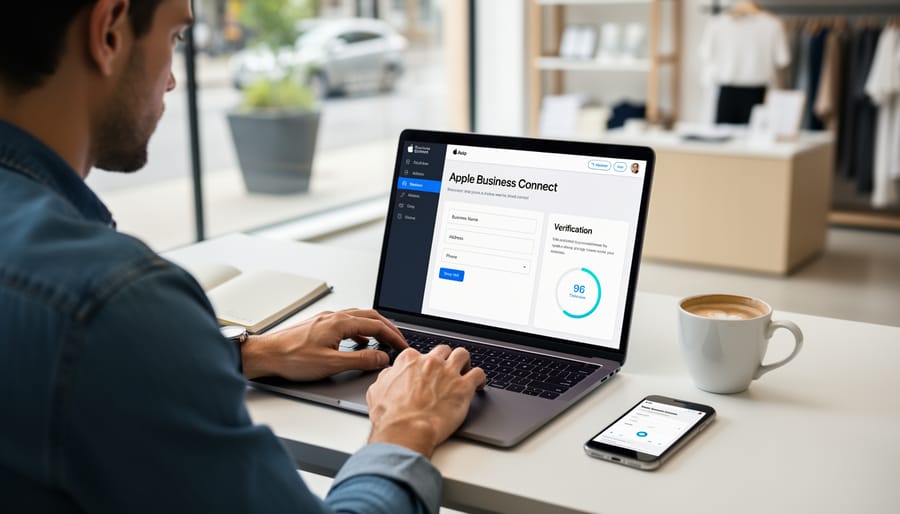
To begin, visit business.apple.com and click the “Get Started” button. You’ll need to sign in using your Apple ID. If you don’t have one, you can create it during this process. Apple recommends using a business email address rather than a personal one to maintain proper account management and ensure continuity if team members change.
Once logged in, the platform will prompt you to search for your business. Enter your business name and location details. Apple Business Connect automatically searches existing listings in Apple Maps, which means your business may already appear in their database. This is particularly common if customers have already discovered or interacted with your location through Apple services.
When you locate your business in the search results, click on it to view the existing listing. Review the information displayed to confirm it matches your business. You’ll then see a “Claim This Business” button prominently displayed.
Click this button to initiate the verification process. Apple requires verification to ensure only authorized representatives can manage business information. You’ll typically receive a verification code via phone call, text message, or postcard, depending on your business type and available contact information.
The verification process usually completes within minutes for phone or text verification, while postal verification may take several days. Once verified, you’ll gain full access to edit and optimize your business listing.
Verification Methods That Work
Apple Business Connect offers three straightforward verification methods to confirm you’re the legitimate owner or authorized representative of your business location. Understanding which option works best for your situation can significantly speed up the verification process.
Email verification is typically the fastest method, often completing within minutes. Apple sends a verification code to the email address associated with your business domain. This automated process works seamlessly if you have an active business email with a domain matching your company name. Simply enter the code when prompted, and you’re verified.
Phone verification provides another quick option, delivering a verification code via SMS or voice call to your registered business phone number. This method usually completes within an hour and works well for businesses that maintain consistent phone contact with their clients. The automated system ensures immediate code delivery once you request it.
Postcard verification remains available for businesses that cannot access email or phone verification. Apple mails a physical postcard containing your verification code to your business address. While this traditional method takes five to seven business days, it offers a reliable alternative. The postcard includes clear instructions for entering your code and completing verification.
For most businesses, email verification delivers the fastest results. Choose this method first if your business email domain matches your company name and you have immediate access to that inbox.
Completing Your Essential Business Information
Accurate business information forms the foundation of your Apple Business Connect presence. Start by entering your exact business name as it appears on your storefront and official documents—consistency across all platforms strengthens your local search signals. Your address must match what’s registered with postal services, as Google and Apple cross-reference this data to verify legitimacy.
Input your primary phone number where customers can directly reach you during business hours. This contact method becomes a clickable action on Apple Maps, facilitating immediate client communication. Select your business categories carefully, choosing the most specific options that accurately describe your services. These categories determine when your business appears in relevant local searches, so precision directly impacts visibility.
Your operating hours require meticulous attention. List regular hours for each day, plus special hours for holidays. Many customers check hours before visiting, and outdated information leads to frustrated potential clients and negative reviews. If you offer different hours for specific services, document these separately.
Geographic accuracy matters tremendously for local SEO. Apple uses your location data to serve your business profile to nearby searchers. Even minor address errors can exclude you from “near me” searches, costing you valuable foot traffic. Review every field twice before saving—this information feeds automated systems that connect customers to your business when they’re actively searching for your services.
Optimizing Your Profile to Dominate Local Apple Searches
Choosing the Right Business Categories
Selecting the right business categories is crucial for ensuring your business appears in relevant local searches. Apple Business Connect allows you to choose one primary category and up to nine secondary categories that describe what your business offers.
Your primary category should directly reflect your core business offering. Think about what customers would search for when looking for your main service or product. For example, a coffee shop that also sells pastries should select “Coffee Shop” as the primary category rather than “Bakery” if coffee is the main focus.
Secondary categories expand your visibility across related searches. These should represent additional services or products you offer. Using the coffee shop example, appropriate secondary categories might include “Bakery,” “Breakfast Restaurant,” or “Wi-Fi Spot” if these services are genuinely available.
When selecting categories, consider actual customer search behavior rather than how you prefer to describe your business. Review Apple’s complete category list to identify all applicable options. Be honest and specific—choosing irrelevant categories to gain extra visibility can backfire by attracting the wrong audience and damaging your conversion rates.
Regularly review your category selections as your business evolves. If you add new services or shift your focus, update your categories accordingly. This ensures your business continues appearing in the most relevant searches, maintaining consistent visibility among potential customers actively seeking what you offer.
Writing Descriptions That Convert Searchers to Customers
Your business description serves as your digital storefront on Apple Maps, making it essential to craft copy that both attracts searchers and converts them into customers. The key is balancing SEO optimization with genuine customer engagement.
Start by identifying the specific problems your business solves. Rather than writing “We offer excellent customer service,” focus on concrete value: “Same-day appliance repair with a 90-day warranty.” This approach naturally incorporates relevant keywords while addressing what customers actually search for.
Apple Business Connect allows 750 characters for your description, so make every word count. Lead with your primary service or product, then include secondary offerings. For a bakery, this might be: “Artisan bakery specializing in custom wedding cakes, fresh-baked sourdough bread, and gluten-free pastries. Order online for pickup or delivery throughout downtown Portland.”
Incorporate location-specific keywords organically. Instead of keyword stuffing, weave them into natural sentences: “Serving the Greater Boston area since 2015” or “Minutes from downtown Seattle’s waterfront district.” This helps Apple’s algorithm understand your service area while remaining readable.
Address common customer questions directly in your description. Include information about parking availability, accessibility features, or unique services that set you apart. If you offer virtual consultations or after-hours appointments, mention these conveniences that searchers actively seek.
Avoid generic phrases like “high-quality” or “best in class” without supporting evidence. Replace them with specific differentiators: “Family-owned for three generations” or “certified organic ingredients.” These concrete details build trust and give searchers compelling reasons to choose your business over competitors appearing in the same search results.
Photos That Make Your Business Stand Out
Visual content directly influences whether potential customers choose your business over competitors. Apple Business Connect allows you to upload multiple photo types that showcase your brand effectively.
Start with storefront photos that help customers identify your location easily. Include exterior shots during daylight hours with clear signage visible. Interior photos should highlight your space’s atmosphere, cleanliness, and layout—these build trust before customers visit.
Product photos demonstrate what you offer and set accurate expectations. Upload high-quality images of your best-selling items or signature services. Team photos humanize your business and help establish personal connections with potential clients.
For optimal results, use images with a minimum resolution of 1000 x 1000 pixels in JPEG or PNG format. Photos should be well-lit, in focus, and accurately represent your current business. Avoid heavily filtered or outdated images that may disappoint customers upon arrival.
Consider geotagging your photos to strengthen your local SEO signals. This adds location metadata that reinforces your business’s geographic relevance.
Businesses with complete photo galleries see up to 35% higher click-through rates in local search results. Update your photos quarterly to reflect seasonal changes, new products, or renovations, keeping your listing fresh and engaging for repeat visitors.

Leveraging Showcase Cards for Maximum Impact
Showcase cards transform your Apple Business Connect listing from a static directory entry into a dynamic marketing channel. These visual cards appear prominently when customers search for your business in Apple Maps, Siri, and Messages, making them powerful tools for driving immediate action.
To create a Showcase card, navigate to the Showcase section in your Business Connect dashboard. Click “Create Showcase” and choose from four card types: Offers (for promotions and discounts), Events (for time-specific happenings), Updates (for news and announcements), or Products (for featured items). Each card type serves a distinct purpose in your customer communication strategy.
When building your card, upload high-quality images that grab attention immediately. The recommended image size is 2048 x 2048 pixels, and your visual should clearly represent your offer or event without requiring explanation. Write compelling headlines limited to 60 characters, ensuring they communicate value instantly. Your description field allows 200 characters, so focus on the most critical details: what you’re offering, why it matters, and what action customers should take.
Set precise start and end dates for time-sensitive content. This automation ensures your Showcase cards appear and disappear without manual intervention, keeping your listing current effortlessly. For offers, include clear terms and redemption instructions to reduce customer confusion and streamline the conversion process.
Monitor performance through the Business Connect analytics dashboard. Track impressions, taps, and actions taken to understand which cards resonate with your audience. Use these insights to refine future Showcase content, optimizing your approach based on actual customer behavior rather than assumptions.
Managing Your Listing for Ongoing Local SEO Success
Keeping Your Information Current
Accurate business information drives customer trust and directly impacts your local search performance. Make information updates part of your regular business routine rather than treating them as occasional tasks.
Set up a quarterly calendar reminder to review all your business details, even if nothing has changed. This proactive approach catches outdated information before it affects customers. Pay special attention to phone numbers, website URLs, and service descriptions that may evolve as your business grows.
Holiday hours require advance planning. Update your hours at least one week before major holidays, including closures for Thanksgiving, Christmas, New Year’s Day, and any industry-specific observances. Apple Business Connect allows you to set special hours for specific dates, ensuring customers see accurate information when they need it most.
For temporary closures due to renovations, weather events, or unexpected circumstances, immediately update your status in the platform. Include an estimated reopening date in your business description to manage customer expectations. This transparency prevents negative reviews from customers who arrive at a closed location.
Automate your update process by assigning responsibility to specific team members. Designate one person to handle all Apple Business Connect updates, or create a shared checklist that ensures nothing falls through the cracks. Document your login credentials securely and establish a backup contact who can make urgent changes when the primary administrator is unavailable.
Consider seasonal adjustments beyond holidays. Many businesses extend hours during peak seasons or reduce them during slower periods. Update these changes promptly to maintain consistency across all customer touchpoints.
Monitoring Your Performance Metrics
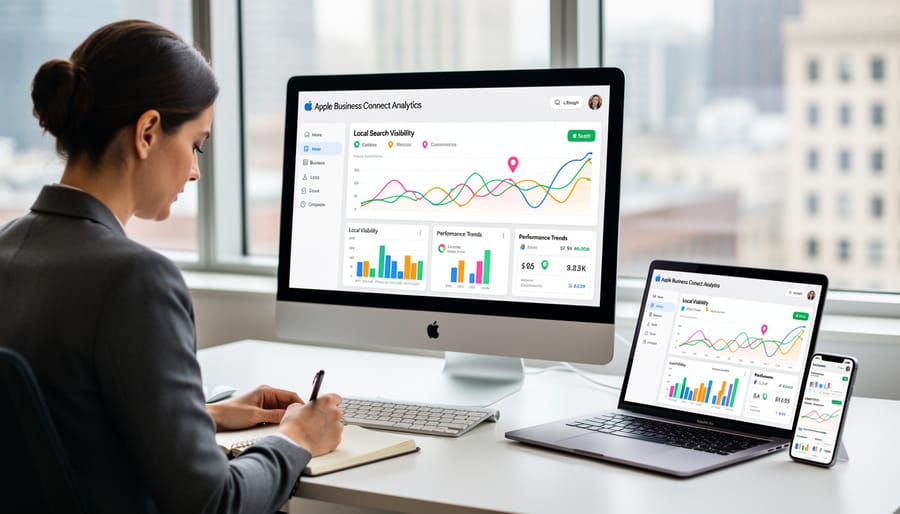
Apple Business Connect provides valuable analytics that help you understand how customers discover and interact with your business listing. The dashboard tracks three primary metrics: impressions, directions requested, and actions taken. Impressions show how often your business appears in search results and Maps, giving you visibility into your local search presence. Direction requests indicate customers actively planning to visit your location, while actions include phone calls, website visits, and message interactions initiated from your listing.
Pay attention to trends rather than single data points. A consistent increase in impressions suggests improved search visibility, while high direction requests with low follow-through might indicate issues with your physical location accessibility or operating hours accuracy. The ratio between impressions and actions reveals your listing’s effectiveness at converting views into engagement.
Use these insights to refine your optimization strategy. If certain photos generate more engagement, replicate that visual style. Low action rates suggest you need more compelling calls-to-action or updated service descriptions. Track performance weekly during the first month after setup, then shift to monthly reviews once you establish baseline metrics. This automated monitoring process helps you identify what resonates with your target audience and adjust your Business Connect presence accordingly, ultimately driving more qualified customer interactions to your business.
Responding to Customer Actions
Apple Business Connect enables customers to interact with your business directly through Apple Maps by leaving reviews, uploading photos, and asking questions. Monitoring these interactions should become part of your daily communication workflow. Set up notifications in your Apple Business Connect dashboard to receive alerts when customers engage with your listing, ensuring you can respond promptly to maintain a positive reputation.
When responding to reviews, keep your replies professional and personalized. Thank customers for positive feedback and address any concerns raised in negative reviews with actionable solutions. Quick response times demonstrate your commitment to customer service and can influence potential customers researching your business.
Integrate Apple Business Connect responses into your broader customer relationship management system. If you use automated communication tools, ensure your team can access customer interactions across all platforms, including Apple Maps. This unified approach prevents duplicate responses and maintains consistent messaging across channels.
Consider establishing response templates for common scenarios while still personalizing each interaction. This streamlines your process without sacrificing authenticity, allowing your team to manage customer communications efficiently while maintaining the professional, attentive service that builds lasting customer relationships.
Integrating Apple Business Connect with Your Overall Local SEO Strategy
Apple Business Connect shouldn’t operate in isolation—it’s most effective when integrated into your comprehensive local SEO strategy alongside other platforms and practices.
The most critical element of multi-platform management is NAP consistency. Your business name, address, and phone number must be identical across Apple Business Connect, Google Business Profile, Bing Places, and your website. Even minor variations like “St.” versus “Street” can confuse search engines and dilute your local SEO efforts. Before launching on any new platform, document your official NAP format and use it consistently everywhere.
Coordinate your efforts across Apple Maps and Google Maps strategically. While both platforms serve similar purposes, they reach different audiences. Apple Maps dominates iOS users, who typically represent higher-income demographics, while Google reaches a broader audience. Update both platforms simultaneously with any business changes—new hours, services, or photos. This parallel approach ensures you’re not missing potential customers based on their device preferences.
Consider the role Apple Business Connect plays in mobile-first local SEO. Since Apple devices drive significant mobile search traffic, your presence on Apple Maps directly impacts how mobile users discover your business. Ensure your Apple Business Connect profile includes mobile-friendly elements like clear calls-to-action and up-to-date contact information.
Automation tools can streamline multi-platform management significantly. Platforms like Yext, Moz Local, or BrightLocal allow you to update business information across multiple directories simultaneously, reducing manual work and minimizing errors. While these services require investment, they save considerable time for businesses managing multiple locations or frequent updates.
Establish a regular review schedule for all your local listings. Set monthly reminders to check for accuracy, respond to new reviews, and update seasonal information. This proactive approach prevents outdated information from harming your visibility and keeps your profiles fresh across all platforms, maximizing your local search performance.
Apple Business Connect represents a significant competitive advantage for businesses seeking to strengthen their local search presence without incurring additional marketing costs. By claiming and optimizing your business profile on this platform, you gain direct control over how your brand appears across Apple’s ecosystem, including Maps, Siri, and Wallet—reaching millions of potential customers who rely on Apple devices for local discovery.
The core optimization actions we’ve covered are straightforward yet powerful. Start by claiming your business and ensuring complete, accurate information across all profile sections. Add high-quality photos that showcase your offerings, create targeted Showcases for products or services, and use custom categories to improve discoverability. Regularly update your hours, especially during holidays, and maintain prompt responses to customer reviews to build trust and engagement.
The automation capabilities within Apple Business Connect streamline these processes, allowing you to manage multiple locations efficiently and schedule updates in advance. This means you can maintain an active, current presence without dedicating excessive time to manual updates. Focus on establishing clear communication channels through accurate contact information and messaging features to convert profile views into actual customers.
The businesses that succeed with Apple Business Connect are those that treat it as an ongoing priority rather than a one-time setup task. Your competitors may already be leveraging this platform, making immediate action essential.
Take the next step today: log into your Apple Business Connect account and audit your current profile against the optimization checklist provided in this guide. Identify three specific improvements you can implement this week, then schedule recurring calendar reminders to review and refresh your content monthly.
Leave a Reply